Category: Hardware Tips

  • Tomtom Connected to PC but Not Recognised?

    I was trying to update my TomTom Go VIA 52 but no matter what I did, it would not get recognised by the TomTom MyDrive Connect software.

    I tried another PC, same issue. I tried a third PC, but the same issue.

    The device was charging but was not recognised.

    I thought it must be a cable issue, the original cable was damaged so I found a right-angle micro USB spare cable and used that, it was working fine.

    I found a thicker 20 or 28awg cable and it worked fine, it connected the first time and the screen was a little brighter.

    I have now ordered this cable so I don’t have the cable end sticking out.

    Q? Encoding=UTF8&ASIN=B08R6RYWD2&Format= SL250 &ID=AsinImage&MarketPlace=GB&ServiceVersion=20070822&WS=1&tag=travelportable 21&language=en GBIr?t=travelportable 21&language=en GB&l=li3&o=2&a=B08R6RYWD2

    The REST API encountered an error in WordPress when trying to retrieve data. The unexpected result returned by the REST API was a 404 error. This issue with the REST API in WordPress can be fixed by following some steps. Here’s how to resolve the REST API error in WordPress and prevent the REST API from encountering unexpected results.

    First, check if the REST API is enabled in your WordPress installation. To do this, navigate to the WordPress dashboard and go to the Settings tab. Under the Permalinks section, ensure that the “Post name” option is selected. If not, choose the “Post name” option and save the changes. This should enable the REST API and potentially fix the encountered error.

    If the REST API is already enabled and the error persists, it’s essential to troubleshoot further. One possible cause of the unexpected result with the REST API is a conflict with plugins or themes. To identify if this is the case, deactivate all your plugins and switch to a default WordPress theme. Then, try accessing the REST API again and check if the error still occurs. If the error disappears, it means that one of the deactivated plugins or the previously used theme was causing the unexpected result.

    To pinpoint the conflicting plugin or theme, reactivate them one by one and test the REST API after each activation. This will help you identify which specific plugin or theme is causing the error. Once the conflicting plugin or theme is identified, you can either reach out to its developer for support or search for alternative plugins/themes that don’t conflict with the REST API.

    By troubleshooting and resolving the encountered error in the REST API, you’ll ensure that your WordPress website functions smoothly. It’s crucial to stay vigilant and regularly check for updates to plugins and themes, as they can often introduce compatibility issues with the REST API. Keeping your WordPress installation up to date will help avoid unexpected results and maintain the proper functioning of the REST API.
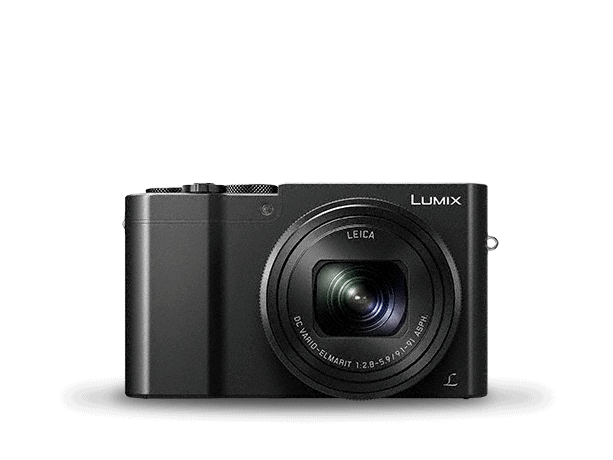

  • Panasonic TZ100 (ZS100) – change to 30 and 60fps and increase 4K recording time

    Panasonic TZ100 (ZS100) – change to 30 and 60fps and increase 4K recording time

    Having just purchased the Panasonic Lumix TZ100 compact camera I am initially impressed with the camera.  A few things I found disappointing, one I can fix with a simple bypass.

    The initial default framerate is set to 25 and 50fps not 30 and 60fps.  Also, the max record time in 4K is only 15mins, this will increase it to 30mins – unfortunately AVCHD 1080p60 is still only 29:20.

    How to increase Panasonic frame rate and 4k recording time

    Luckily there is a simple key press bypass I found here on the DPReview forum:

    Switching to test mode to have 30p/60p:

    1. Switch OFF the camera

    2. Put Mode Dial into P position

    3. Press and keep DISP., AF/AE Lock and Right Cursor buttons. Switch power On

    4. Press Playback button

    5. Press and keep AF/AE Lock and Up Cursor buttons. Switch power Off. Black exclamation mark in yellow triangle will appear instead of Lumix logo. Your camera is in test mode now.

    Reverting back to initial state:

    1. Switch On the camera

    2. Put Mode Dial in to P position

    3. Press and keep MENU/SET and Right Cursor buttons. Switch power Off

    4. Initial Settings screen will appear

    5. Press DISP. button

    6. Press Right Cursor button and Right Cursor button again

    7. Lumix logo will appear. Your camera is in initial state now.

    Note, that in test mode your camera does not recognized by Windows PC for unknown reason (for me). Don’t worry. Use any card reader and PhotofunStudio to transfer your pictures to PC. PhotofunStudio recognizes SD card structure and transfer all images, videos, time lapse pics, etc properly.

    The camera has been great so far, as with other cameras of this size there is no grip but I have found a few other bits which can be stuck on to add grip.

    I will post a video and screenshots in another post.

    This camera is officially DMC-TZ100EBK (Black) UK and EU, also known as ZS100 in USA and TZ110 in Australia and parts of Asia.

    I had my heart set on the Sony RX100M4 or RX100M5 but the 4K recording time was even more limited and there is no touch screen, plus this camera has a 10x zoom which is very useful on days out.  Overall the specification on this camera suited me, the Sony RX100 range is the premier camera in this compact camera market but lacks the zoom and touch screen.  I am not a vlogger so the flip screen is not an issue.

  • New method to install Kodi on Amazon Fire TV 4K and Fire Stick

    There is a new much easier method to install and update Kodi on the Amazon Fire TV 4K and Fire TV Stick.

    You can purchase (free) ES File Explorer from the Amazon app store and use that to add a link directly to the kodi.tv download page then download the .apk file.

    [amazonjs asin=”B00UH2O6T2″ locale=”UK” tmpl=”Small” title=”Amazon Fire TV with 4K Ultra HD”]

    [amazonjs asin=”B00KAKUN3E” locale=”UK” tmpl=”Small” title=”Fire TV Stick”]

    firestick-470x200

  • Install Kodi on Amazon Fire TV

    My TV is not a fast smart TV so I purchased the Amazon Fire TV with 4K Ultra HD to stream media on my network and also to install Kodi.

    Install from Windows PC
    Need Java JDK V7 or greater – install this first to save having to search for the correct path in Android Studio later

    Android developers SDK – Android Studio (about 1Gb)

    Download from kodi.tv android arm version

    Youtube guide for installing Kodi

    Adding packages Genesis, Phoneix etc

    Text guide for installing packages and addons

    Genesis
    Phoenix

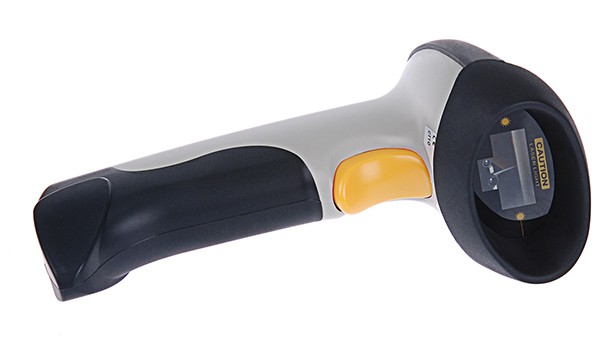
  • Bluetooth Barcode scanner Inateck BCST-10 and Inateck BTA-CSR4B5 problems

    Bluetooth Barcode scanner Inateck BCST-10 and Inateck BTA-CSR4B5 problems

    I could not get my Inateck BCST-10 barcode scanner to sync with the Inatack BTA-CSR4B5 USB bBluetoothadapter.  Inateck support suggested uninstalling the drivers and installing the adapter as a generic bluetooth adapter.  Unfortunately ,that did not work for me.  It seems that this is a problem with this particular bBluetoothchipset as this forum post shows.

    I followed the advice:

    To accomplish this select “Update Driver Software” from “CSR BlueCore Nanosira” (the working device), then select “Browse my computer for driver software” and then “Let me pick form a list of device drivers on my computer”. In my case Windows presents the new driver from CSR (“CSR BlueCore Nanosira”) and two generic drivers as you can see in screenshot 2. 

    I selected “Generic Bluetooth Radio” from the list and clicked OK. Then I had “Generic Bluetooth Radio” and “Microsoft Bluetooth Enumerator” back under “Bluetooth Radios” and the Bluetooth icon appeard in the taskbar again. After that I was able to use my bluetooth mouse and keyboard again (even without pairing it again).

    I tested the scanner with my netbook and the internal bluetooth radio and it works ok.

Pin It on Pinterest