Category: Tech Issues

  • Xerox 3320 Undefined XL Code 0x3 error fix

    Xerox 3320 Undefined XL Code 0x3 error fix

    I got this random looking error when trying to print a document, I had never seen it before and I had no idea how to fix it.

    I tried to restart the printer.

    In the end, I had to remove the printer from Wndows, download the latest driver pack from Xerox (Global Printer Drivers) then manually reinstall using the driver file not the Windows drivers.

    Did the trick straight away, nice simple fix.

  • How to disable updates for Windows Server

    How to disable updates for Windows Server

    I have been having ongoing issues with Windows Server 2022 and auto updates.

    I have a VPS I use for Xevil, every time Windows Server updates its security configs, it deletes the files for Xevil.

    I tried all sorts to disable but it just would not work.

    In then end I found this YouTube video to completely disable all auto updates from fresh.

    I reinstalled Windows Server 2022 on the VPS, ran the commands and edited the group policy and it appears to be working.

    The first thing to do is, in command prompt (windows tab) enter CMD

    sconfig

    Once the options appear, select 5 (updates download) and then press m and enter to make it manual mode.

    Windows Server 2022 Sconfig Updates 1024x597

    Exit the menu, whilst still in CMD enter gpedit.msc press enter, wait for the group policy window to load.

    In Group Policy, look for Computer Configuration, then Administrative Templates, then Windows Components, then Windows Update

    Then change 3 policies:

    • Turn off auto-restart for updates during active hours – change to Enabled and enter hours, I entered 8am to 11pm
    • Configure automatic updates – change to disabled
    • No auto-restart with logged on users for scheduled automatic updates instllation – change to enabled.
    Windows Server 2022 Group Policy Auto Updates Edit 3 1024x593

    I restarted and checked Windows updates; it now says “Your organisation has turned off automatic updates”.

  • Convert Windows Server 2019 Evaluation to Standard Retail

    If your VPS has an Evaluation version running as a free install, you can purchase a retail key and convert to a full version fairly quickly with just a few commands.

    This process works for most versions, I tested with Windows Server 2019, Windows Server 2022 and Windows Server 2025 Standard versions.

    If your VPS powers down every day or every few days, that means that you are over your 180 days free evaluation period and you need to upgrade to a full version of Windows Server.

    I prefer Windows Server 2019 over 2022+.

    Firstly run PowerShell (Windows control then enter Power Shell)

    Then enter the following:

    DISM /online /Get-CurrentEdition

    That will give you your current version.

    Then enter this command to get the upgradeable versions:

    DISM /online /Get-TargetEditions

    Then, once you have your Windows Server 2019 Standard key, run this command:

    DISM /Online /Set-Edition:ServerStandard /ProductKey:xxxxx-xxxxx-xxxxx-xxxxx-xxxxx /AcceptEula

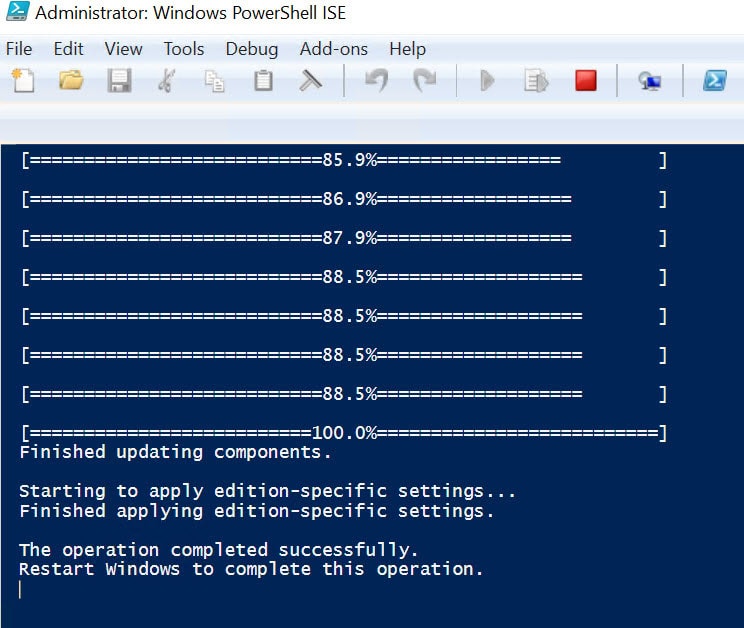
    After a few minutes, the process will complete – let this run as it can be slow depending on the system.

    You will need to restart the VPS.

    Windows Server 2019 Evaluation To Standard
  • Tomtom Connected to PC but Not Recognised?

    I was trying to update my TomTom Go VIA 52 but no matter what I did, it would not get recognised by the TomTom MyDrive Connect software.

    I tried another PC, same issue. I tried a third PC, but the same issue.

    The device was charging but was not recognised.

    I thought it must be a cable issue, the original cable was damaged so I found a right-angle micro USB spare cable and used that, it was working fine.

    I found a thicker 20 or 28awg cable and it worked fine, it connected the first time and the screen was a little brighter.

    I have now ordered this cable so I don’t have the cable end sticking out.

    Q? Encoding=UTF8&ASIN=B08R6RYWD2&Format= SL250 &ID=AsinImage&MarketPlace=GB&ServiceVersion=20070822&WS=1&tag=travelportable 21&language=en GBIr?t=travelportable 21&language=en GB&l=li3&o=2&a=B08R6RYWD2

    The REST API encountered an error in WordPress when trying to retrieve data. The unexpected result returned by the REST API was a 404 error. This issue with the REST API in WordPress can be fixed by following some steps. Here’s how to resolve the REST API error in WordPress and prevent the REST API from encountering unexpected results.

    First, check if the REST API is enabled in your WordPress installation. To do this, navigate to the WordPress dashboard and go to the Settings tab. Under the Permalinks section, ensure that the “Post name” option is selected. If not, choose the “Post name” option and save the changes. This should enable the REST API and potentially fix the encountered error.

    If the REST API is already enabled and the error persists, it’s essential to troubleshoot further. One possible cause of the unexpected result with the REST API is a conflict with plugins or themes. To identify if this is the case, deactivate all your plugins and switch to a default WordPress theme. Then, try accessing the REST API again and check if the error still occurs. If the error disappears, it means that one of the deactivated plugins or the previously used theme was causing the unexpected result.

    To pinpoint the conflicting plugin or theme, reactivate them one by one and test the REST API after each activation. This will help you identify which specific plugin or theme is causing the error. Once the conflicting plugin or theme is identified, you can either reach out to its developer for support or search for alternative plugins/themes that don’t conflict with the REST API.

    By troubleshooting and resolving the encountered error in the REST API, you’ll ensure that your WordPress website functions smoothly. It’s crucial to stay vigilant and regularly check for updates to plugins and themes, as they can often introduce compatibility issues with the REST API. Keeping your WordPress installation up to date will help avoid unexpected results and maintain the proper functioning of the REST API.

  • Camtasia audio problem – easy fix

    Camtasia audio problem – easy fix

    Camtasia 9 has been my go-to video creation software for a few months now, I was using Adobe Premiere Pro CC but that has a higher learning curve and for someone who only creates the occasional video, it makes sense to use Camtasia to start with.

    Having said that, I noticed an issue with Camtasia that I had not noticed since I started using it.  All of my previous videos were made up of video footage and a music file, pretty straightforward.

    I noticed the Camtasia audio problem with speech files and not the usual music tracks.  I had a voiceover file made and was given the file in MP3 format, never had an issue before and did not envisage any issues.

    Upon importing the file into Camtasia and splitting the voice file as required, I noticed the issue during playback.  Some parts of the track would be skipped and some parts would be repeated.  I tried deleting and re-adding the audio clips and tried to export again and I still had issues.

    Camtasia audio issues fix

    I searched for the solution and found that this is a common or known issue with Camtasia, since Camtasia 8.  There is no official fix as Techsmith state that Camtasia works best with WAV files encoded to 44100 Hz 16-bit stereo.  My files were encoded to MP3 22050 Hz and this was causing the issue.

    The solution requires the original audio file being converted using software such as Audacity which is available free here.

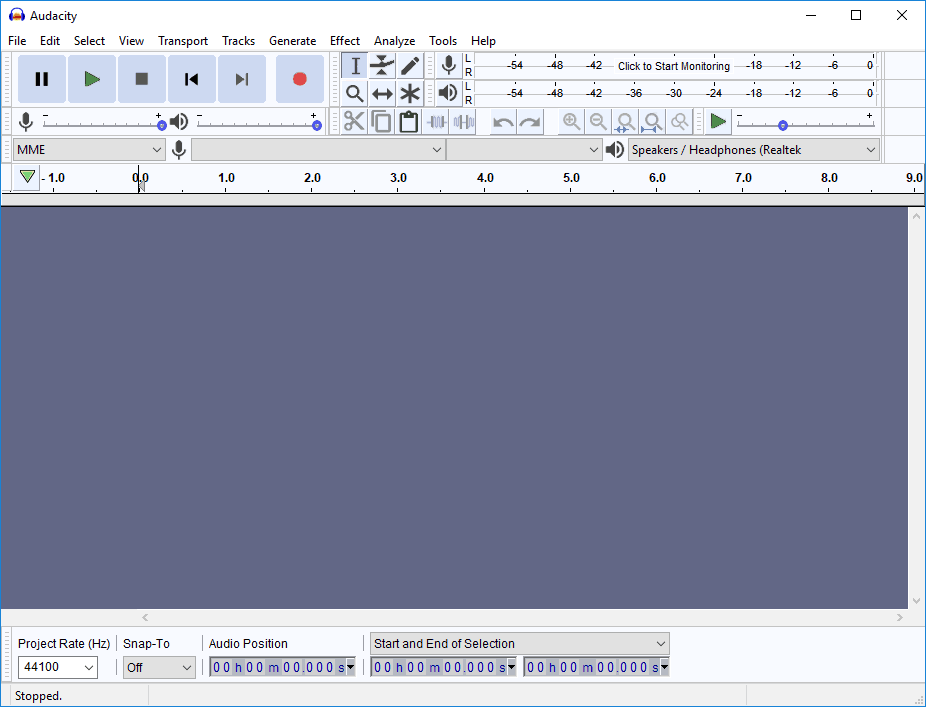
    Simply install and launch Audacity.  Import/open your audio file.

    Camtasia Audio Issues solution fix

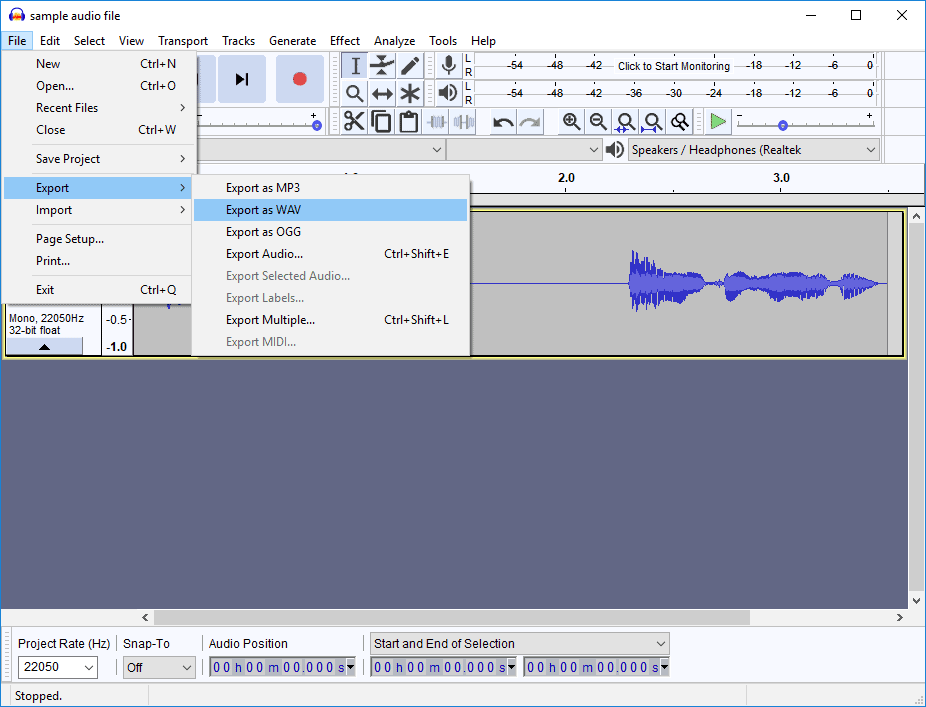
    Then simply export as WAV file

    Camtasia Audio Issues solution fix

    Then use the new WAV file and you will find that the audio is working as it should.

    This is not an ideal fix to Camtasia’s audio issue but is a simple workaround and the solution doesn’t cost anything.

  • ASUS DisplayWidget not working in Windows 10

    ASUS DisplayWidget not working in Windows 10

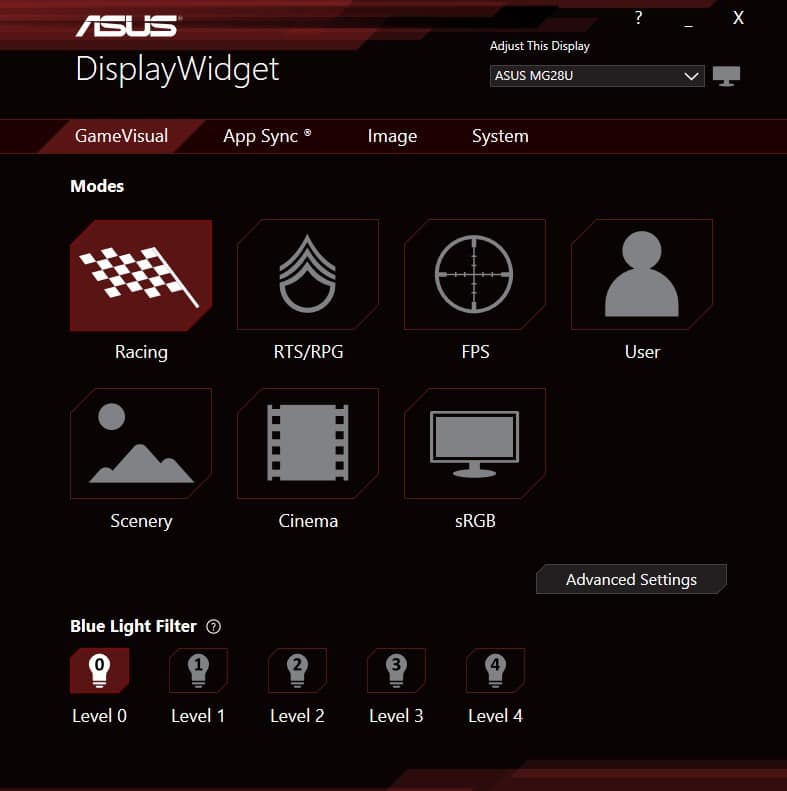
    I just bought a shiny new Asus MG28UQ 4k 28″ monitor, set it all up, tried to install the Asus DisplayWidget V1.1 from the supplied CD and it didn’t work after installation.  I had a look online and found the link to the file, downloaded what I thought was the new version and still no job.  After double clicking, the software just crashes and does nothing.

    I found a solution in this forum with a link to a newer version of the software (ASU-_ASUS_DisplayWidget_3.0.4.005_RC2-Setup.exe) which appears to be from Portrait.com but I can’t see the link to the 3.x version directly on the Portrait site, the version is 1.1 at the time of writing (link).

    The direct link to the post with the link to the software is here

    Unfortunately, you need to register in that forum to be able to download the file but it works.

    If you encounter any issues with the ASUS Display Widget, such as the ASUS Display Widget not working or a message saying “Monitor not supported,” there are a few steps you can take to troubleshoot. Firstly, ensure that you have the latest version of the ASUS Display Widget installed. You can download the ASUS DisplayWidget Lite from the official ASUS website. If you are using Windows 10 or Windows 11 in English, make sure you download the compatible version for your operating system.

    If you are facing difficulties with the ASUS Display Widget on Windows 10, you may need to check for any updates or compatibility issues. Sometimes, a simple reinstall of the ASUS Display Widget can resolve any problems. However, if the issue persists, it is advisable to seek assistance from ASUS customer support for further guidance.

    Overall, the ASUS Display Widget is a useful tool, providing various customization options for your monitor. By addressing any issues and ensuring you have the correct version installed, you can fully enjoy the benefits of the ASUS Display Widget on your supported monitor.

  • Hullomail not working when switching from Three to EE

    Hullomail not working when switching from Three to EE

    I switched from Three after a few years of decent service to EE – mainly for the superfast 4G which is quite a step up from Three.

    I use the popular Hullomail service to handle my missed calls and call notifications, very handy service as they send notifications via popup and e-mail.  There are 3 tiers, free, premium and busimess – the premium offers the best value for me.  Business includes Scribe which send the voice mail in a text or e-mail.

    The issue I had is I was missing calls when I was on the phone and when I wasn’t, they were going straight to Hullomail.

    I tried using my same activation and deactivation numbers stored by Hullomail starting **004*00443300mailbox# but that didn’t seem to work.

    Today I found that there are some new MMI codes for EE I need to enter:

    **61*0044mailboxnumber*11# for forwarding when no reply

    **62*0044mailboxnumber*11# for forwarding when not reachable

    **67*0044mailboxnumber*11# for forwarding when busy

    Also if you add directly after 11 the following *tt# – the tt represents the divert time max 30 seconds i.e. *30#

    Hope this helps you if like me, you couldn’t figure out what was going on.

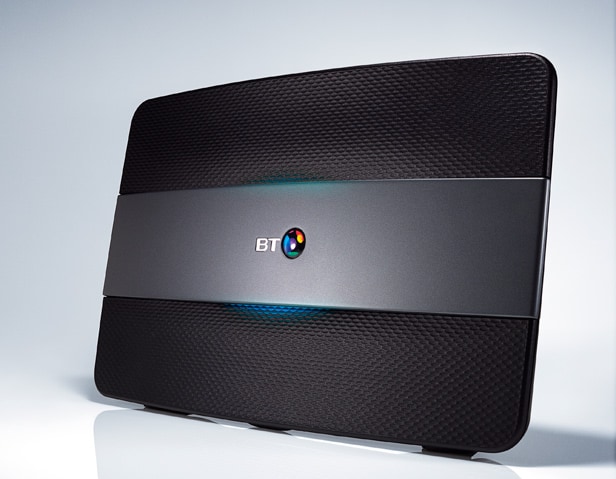
  • IPhone 7 Plus not taking calls when connected to BT Hub 6?

    IPhone 7 Plus not taking calls when connected to BT Hub 6?

    Very strange issue with the new BT Smart Hub (or BT Hub 6) and my Iphone 7 Plus.  I noticed that I was not able to make or receive calls, I have Hullomail installed and I was receiving notifications and e-mails for missed calls.

    This is a strange issue I have had on and off for several weeks.  I tried to get support from BT but they were not much help.  I managed to narrow down the problem to the 2.4Ghz network, if I left my phone connected to the 5Ghz network I could send and receive calls fine.

    I have another 2.4Ghz access point, I tried connecting with that one and it worked fine.  Still not sure what the issue is but it happens infrequently and I can connect to the 5Ghz network just fine.

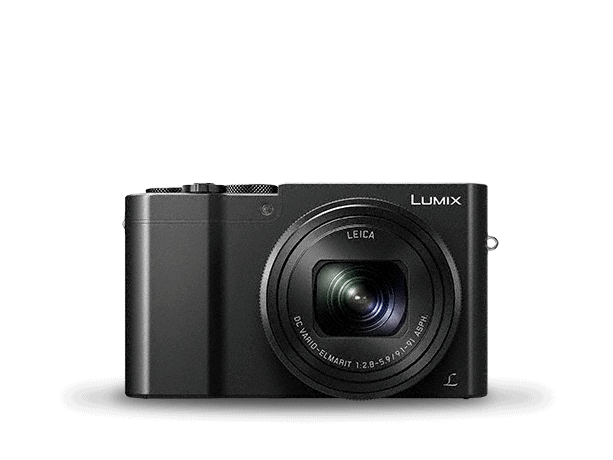
  • Panasonic TZ100 (ZS100) – change to 30 and 60fps and increase 4K recording time

    Panasonic TZ100 (ZS100) – change to 30 and 60fps and increase 4K recording time

    Having just purchased the Panasonic Lumix TZ100 compact camera I am initially impressed with the camera.  A few things I found disappointing, one I can fix with a simple bypass.

    The initial default framerate is set to 25 and 50fps not 30 and 60fps.  Also, the max record time in 4K is only 15mins, this will increase it to 30mins – unfortunately AVCHD 1080p60 is still only 29:20.

    How to increase Panasonic frame rate and 4k recording time

    Luckily there is a simple key press bypass I found here on the DPReview forum:

    Switching to test mode to have 30p/60p:

    1. Switch OFF the camera

    2. Put Mode Dial into P position

    3. Press and keep DISP., AF/AE Lock and Right Cursor buttons. Switch power On

    4. Press Playback button

    5. Press and keep AF/AE Lock and Up Cursor buttons. Switch power Off. Black exclamation mark in yellow triangle will appear instead of Lumix logo. Your camera is in test mode now.

    Reverting back to initial state:

    1. Switch On the camera

    2. Put Mode Dial in to P position

    3. Press and keep MENU/SET and Right Cursor buttons. Switch power Off

    4. Initial Settings screen will appear

    5. Press DISP. button

    6. Press Right Cursor button and Right Cursor button again

    7. Lumix logo will appear. Your camera is in initial state now.

    Note, that in test mode your camera does not recognized by Windows PC for unknown reason (for me). Don’t worry. Use any card reader and PhotofunStudio to transfer your pictures to PC. PhotofunStudio recognizes SD card structure and transfer all images, videos, time lapse pics, etc properly.

    The camera has been great so far, as with other cameras of this size there is no grip but I have found a few other bits which can be stuck on to add grip.

    I will post a video and screenshots in another post.

    This camera is officially DMC-TZ100EBK (Black) UK and EU, also known as ZS100 in USA and TZ110 in Australia and parts of Asia.

    I had my heart set on the Sony RX100M4 or RX100M5 but the 4K recording time was even more limited and there is no touch screen, plus this camera has a 10x zoom which is very useful on days out.  Overall the specification on this camera suited me, the Sony RX100 range is the premier camera in this compact camera market but lacks the zoom and touch screen.  I am not a vlogger so the flip screen is not an issue.

  • MicroSD card not recognised after using HP FAT32 Format Tool

    I have 2 64gb Micro SD class 10 cards that I use for my Vantrue X2 car dvr , one is a SanDisk Ultra 64GB  and the other is Kingston 64 GB.  After experiencing some issues with the camera not recognising the speed of the card, the manufacturer suggested formatting the cards to FAT32 with the HP FAT32 formatting software.

    I downloaded the software here and tried to format the first card, I got an error saying the card cannot be formatted.  I tried to access the card via file explorer and go the message please insert usb device.  I tried with the second card but used a different usb adapter and had the same issue.

    After looking around for a solution I found this software HDD LLF (low level formatter) which formats the card and got the card working again.  After using the software, run a full format (not quick format) via the standard windows formatting option.

Pin It on Pinterest